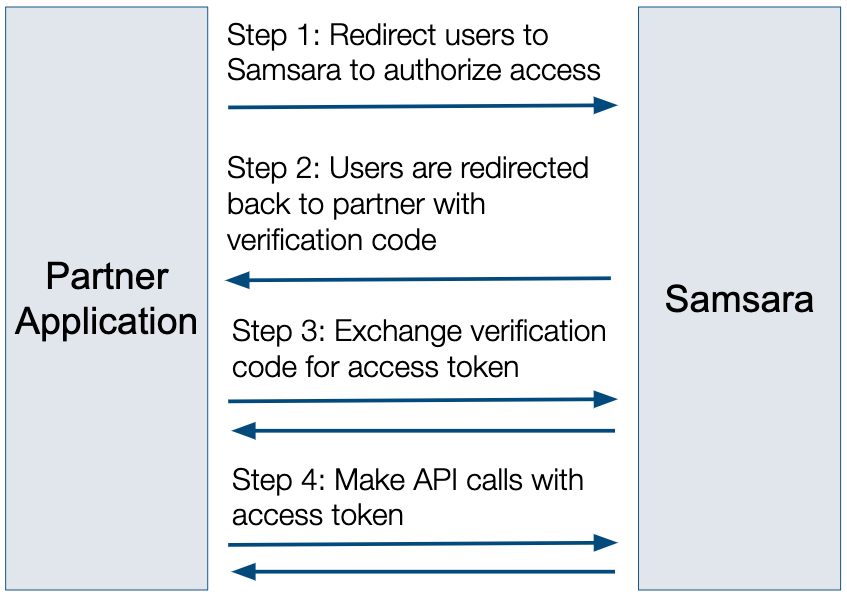
Use this file to discover all available pages before exploring further.
OAuth 2.0 is the recommended authentication method for all Marketplace apps. It provides a secure and user-friendly way to access Samsara’s API by allowing your users to grant permissions through a simple approval flow, eliminating the need to share API tokens manually.For direct integrations, consider using API tokens created from your Samsara dashboard. Use OAuth if enhanced security with token refresh is needed, but note it requires more development effort. Learn more about using API tokens for authentication.
From the Samsara dashboard select Settings > OAuth 2.0 AppsTo create a new OAuth 2.0 App, you’ll need the following:
Field
Description
Required
App name
Your app’s name, which appears on the Samsara dashboard.
Yes
Redirect URL
The URL where users are redirected after granting access.
Yes
Scopes
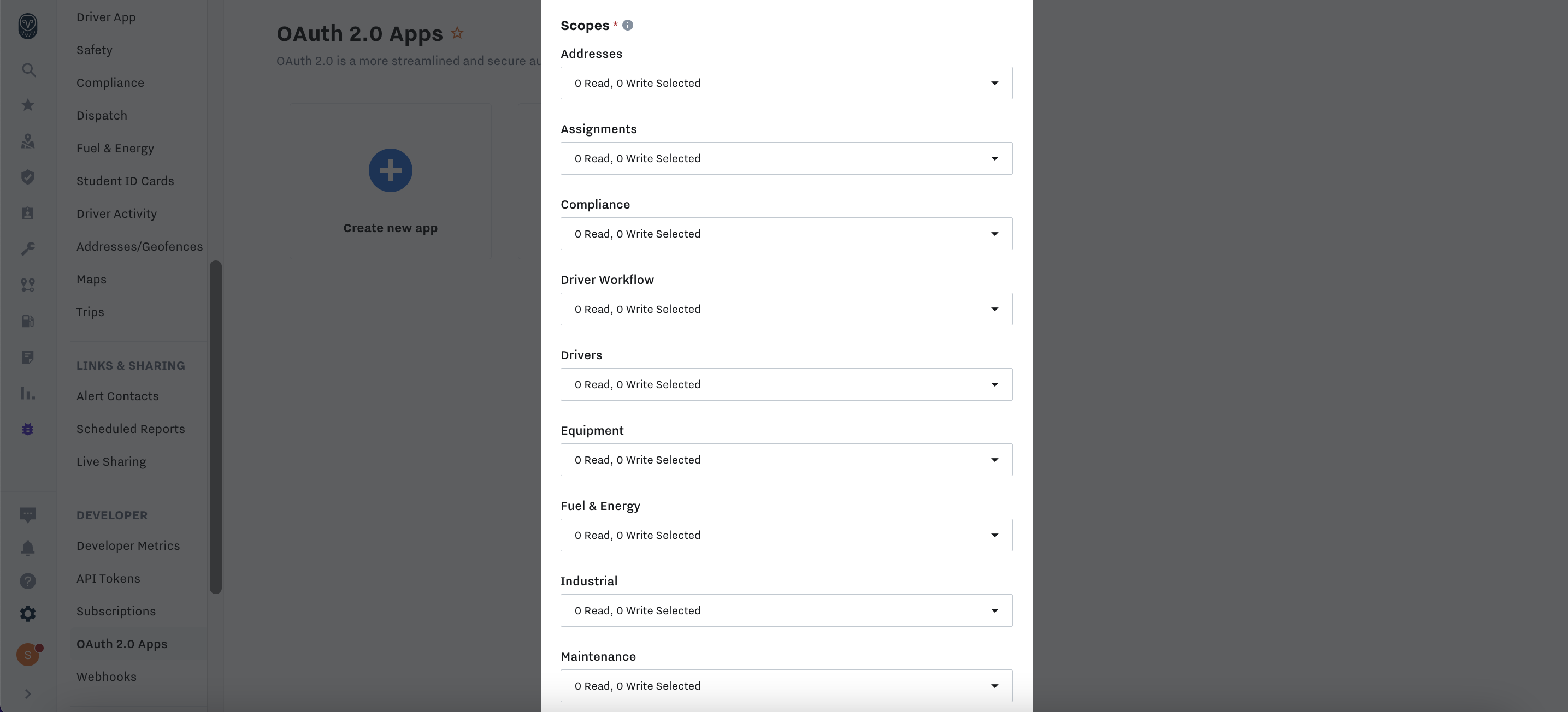
The permissions your App requires. Each API endpoint requires specific scopes, which you can find in the API Reference.
Yes
App Logo
A JPEG or PNG. Suggested dimensions are 75x75 (max size 100KB).
Yes
Direct Install URL
A URL in your app where users can initiate the OAuth 2.0 flow. Enables installation from the Samsara Dashboard.
No
Scope changes affect ALL app installs. Scope changes apply to all future app installs or updates. Users must re-authorize or update the app for updated scopes.
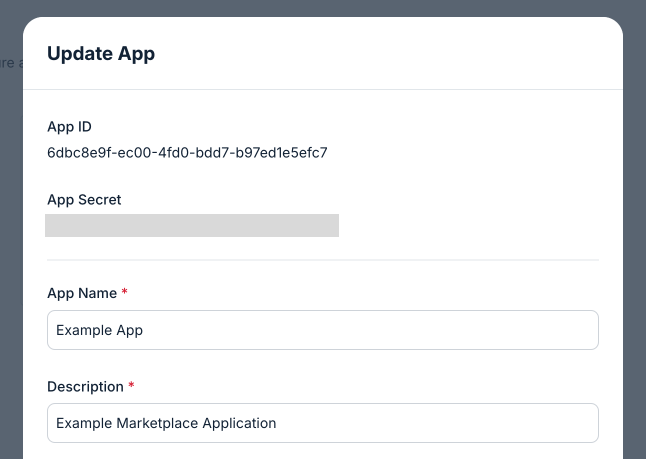
Record your App ID and App Secret credentials, as they are used to authenticate calls related to the OAuth process:
App ID (also known as client_id)
App Secret (also known as client_secret)
Store your App Secret securely. Your App Secret is a form of credential like a password. To keep your integration secure, never store it in your source code or commit it to version control. Instead, read the App Secret from an environment variable or secret manager.
As an example, your .env file might look like this:
Start the OAuth 2.0 flow by redirecting users to the authorize endpoint /oauth2/authorize with these query parameters:
Parameter
Description
Required
client_id
App ID provided when you created your OAuth 2.0 App in the Samsara Dashboard.
Yes
state
A unique code to prevent CSRF attacks. Verify this code in Step 2 when the user is redirected. Must be more than 8 characters.
Yes
response_type
Must be code as only authorization code grant flow is currently supported.
Yes
redirect_uri
The URI of your app that Samsara will redirect users back to after they grant access. Only required if you support multiple redirect URIs. Must use SSL protocol (https).
Optional
ExampleHere’s an example link with the client_id, state, and response_type parameters:
<a href="https://api.samsara.com/oauth2/authorize?client_id=IEC65XwwV9&state=z3qAr0h5Ud&response_type=code">Connect to Samsara</a>
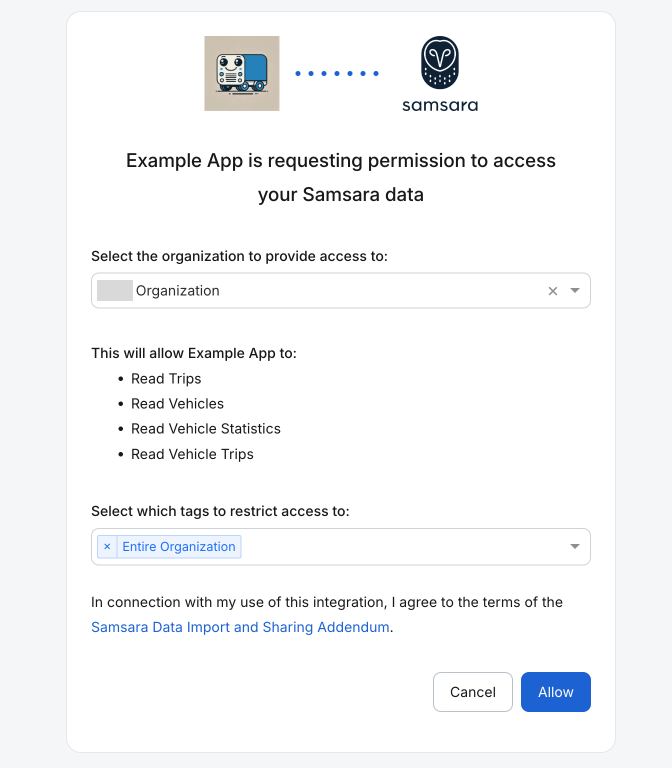
When a user clicks the authorize link, they’ll be redirected to the Samsara authorization page where they can grant access to your app.
When the user clicks “Allow”, Samsara redirects them to your redirect_uri with these query parameters:
Parameter
Description
code
Authorization code to exchange for an access token. Expires after 10 minutes.
state
Same as the state parameter from Step 1. If they differ, abort the flow as this may indicate a CSRF attack.
scope
The access level granted to your app. admin:read for read-only access or admin:write for full read/write access.
ExampleWhen a user grants access, Samsara redirects them to your app with a URL like this:https://my-app.com?code=hgg2tziN39&state=z3qAr0h5Ud&scope=admin%3AreadIf a user clicks “Cancel” or if an error occurs, they are redirected to the redirect_uri with the following query parameters:
Parameter
Description
error
The error code. Common values include scope_not_granted and invalid_request.
error_description
A human-readable description of the error.
error_hint
A human-readable hint that may assist the client in resolving the error.
state
The state parameter from Step 1.
ExampleWhen a user denies access, the redirect URL includes error details like this:https://my-app.com?error=scope_not_granted&error_description=The+token+was+not+granted+the+requested+scope&error_hint=The+resource+owner+did+not+grant+the+requested+scope.&state=PDoPp3AE-4AqDHP4dXnbeA
Exchange the authorization code for API credentials with a POST request to the /oauth2/token endpoint.Store the access_token and refresh_token in your database, associating them with the relevant user, organization, or account.Calculate and save an expires_at timestamp using the expires_in value from the response. Before making an API call, check if the token has expired; if so, refresh it just-in-time.Note: You don’t need to refresh credentials before expiration if it is not being used to make an API call.AuthorizationTo authenticate using HTTP Basic Auth using your OAuth 2.0 client ID and client secret:
Combine the client_id and client_secret with a colon (e.g. "client_id:client_secret")
Base64 encode that string
Add "Basic " followed by the encoded string to the Authorization header
For example, if your credentials are:
client_id: my_id
client_secret: my_secret
The Authorization header would be: Authorization: Basic bXlfaWQ6bXlfc2VjcmV0
const clientId = process.env.SAMSARA_OAUTH_CLIENT_ID;const clientSecret = process.env.SAMSARA_OAUTH_CLIENT_SECRET;// Base64 encoded authorization stringconst auth = Buffer.from(`${clientId}:${clientSecret}`).toString("base64");// Make the request with header `Authorization: Basic ${auth}`
Body
Content-Type: application/x-www-form-urlencoded
Parameter
Description
Required
code
The verification code provided to you in Step 2.
Yes
grant_type
Must be authorization_code.
Yes
ResponseThe API returns a JSON response containing the following:
The token to authenticate with the Samsara API on behalf of the user.
expires_in
The number of seconds until the access token expires. Access tokens expire after 1 hour. After the access token expires, you must request a new one using the refresh token. See Refresh Tokens.
scope
admin:read for read-only apps or admin:write for full-access read/write apps.
token_type
bearer indicating the access token is to be used with the Authorization: Bearer HTTP header for calls to the Samsara API.
refresh_token
The token used to request a new access token when the access token expires. See Refresh Tokens.
Once an authorization code is exchanged for a token, the code will no longer be valid.
ExampleHow to exchange an authorization code for API credentials:
POST /oauth2/token HTTP/1.1Host: api.samsara.comContent-Type: application/x-www-form-urlencodedAuthorization: Basic bXlfaWQ6bXlfc2VjcmV0code=hgg2tziN39&grant_type=authorization_code
Authenticate to the API by providing the access token in the Authorization: Bearer HTTP header.
Authorization: Bearer <access_token>
Access tokens last for 1 hour (3600 seconds), matching the expires_in value you receive. To request a new one see Refresh an Expired Access Token.As an example, if the token is hXdwQUq3GBKZTvSLyURh, this is how to make a request to the /fleet/vehicles endpoint:
curl -X GET \
  https://api.samsara.com/fleet/vehicles \
  -H 'Authorization: Bearer hXdwQUq3GBKZTvSLyURh'
After an access token expires, you can request a new one using the refresh_token provided in Step 3. Make a POST request to the /oauth2/token endpoint with the following parameters:
Parameter
Description
Required
refresh_token
The refresh token provided in Step 3.
Yes
grant_type
Must be refresh_token.
Yes
Warning against concurrent OAuth refresh requests. Do not make concurrent requests to the /oauth2/token endpoint to refresh the same API token.You must only make one request at a time with the same refresh token, otherwise your integration may break. Wait until receiving a response before retrying.
refresh tokens may only be used once, then they expire
we recommend conservative retry logic: you should receive a response from Samsara in milliseconds, however the upper bound (p99) can be up to 20 seconds due to server load and processing times
Note that you may make concurrent requests to the other Samsara endpoints using the same access token (e.g. to /fleet/drivers or /fleet/vehicles, etc.).
Body
Content-Type: application/x-www-form-urlencoded
Parameter
Description
Required
refresh_token
The refresh token provided to you in Step 3.
Yes
grant_type
Must be refresh_token.
Yes
ResponseYou’ll receive a JSON response containing the following:
The new access token to authenticate with the Samsara API.
refresh_token
The new refresh token for the next time the access token expires.
expires_in
The number of seconds before the new access token expires. After the access token expires, you must request a new one using the new refresh token.
scope
admin:read for read-only apps or admin:write for full-access read/write apps.
token_type
Indicates that the access token is to be used with the Authorization: Bearer HTTP header in calls to the Samsara API.
Each refresh token can only be used once. Update both your access token and refresh token after each refresh.Failed Refresh: If the new refreshed credentials are not stored and the refresh token was used you can ask the customer to re-authenticate starting at Step 1.
Users can start the installation flow in two ways:
From your application
From the Samsara dashboard where they are linked to your application (Direct Install URL).
Set a Direct Install URL during app registration to let users start the OAuth flow directly from the Samsara dashboard. This URL should point to where users begin Step 1 of the OAuth process.ExampleA Direct Install URL that redirects to a landing page on your website: https://my-app.com/oauth/start?source=samsara. You can include additional query parameters as needed for your application.
Users can revoke authorization from your app through the Samsara Apps page in the Samsara dashboard. This action invalidates all access tokens and refresh tokens for that organization. Requests made with invalid tokens will return responses with 400 status code with the following message: “The provided authorization grant (e.g., authorization code, resource owner credentials) or refresh token is invalid, expired, revoked, does not match the redirection URI used in the authorization request, or was issued to another client.”When a user wants to revoke access to your app, you can make a POST request to the /oauth2/revoke endpoint to invalidate their tokens:
After testing your integration with multiple customers and ensuring it works reliably, review the requirements to get your app certified for the Samsara App Marketplace.


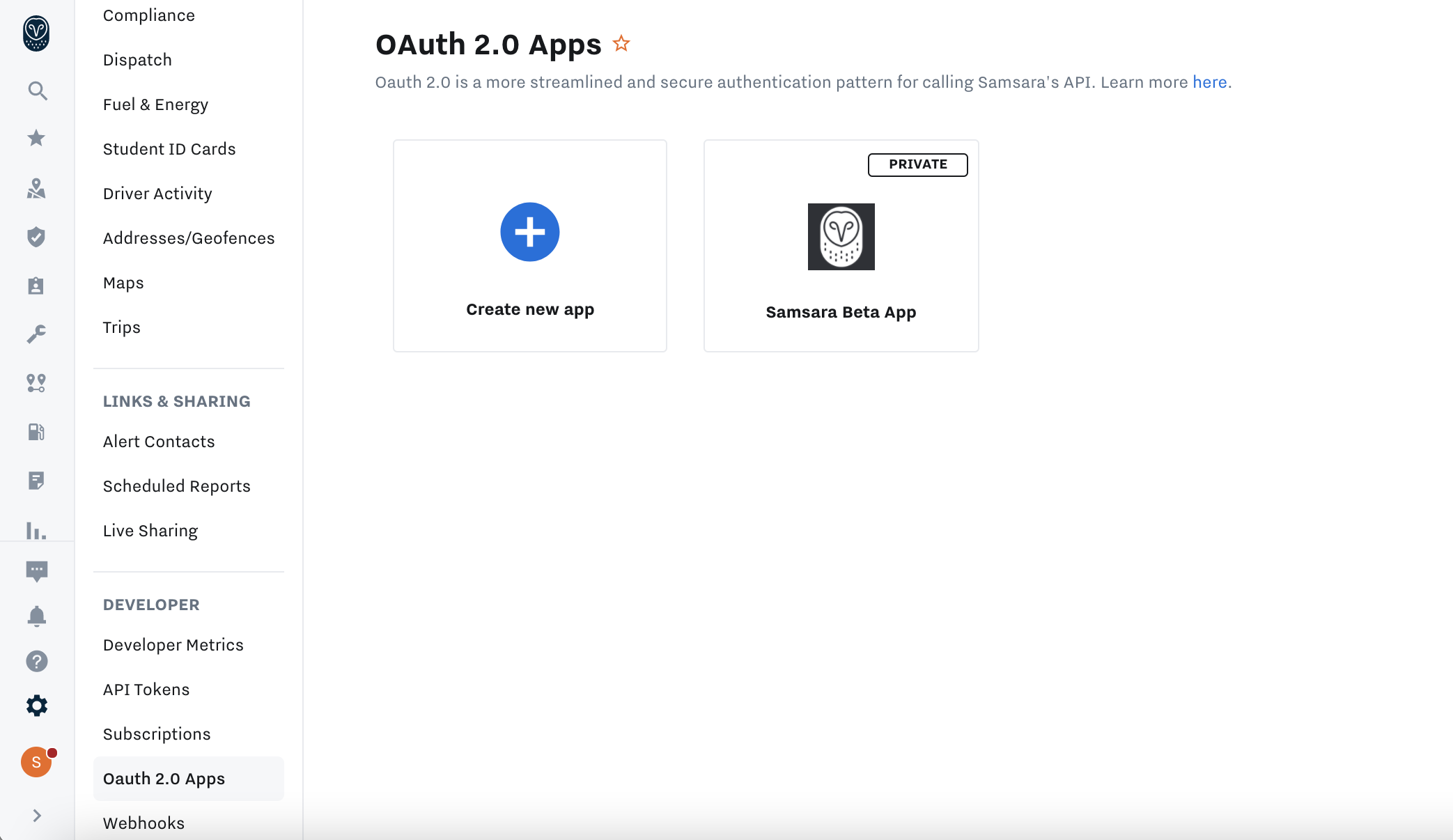 To create a new OAuth 2.0 App, you’ll need the following:
 Record your App ID and App Secret credentials, as they are used to authenticate calls related to the OAuth process:
 As an example, your